How to Record Calls in WhatsApp Business?
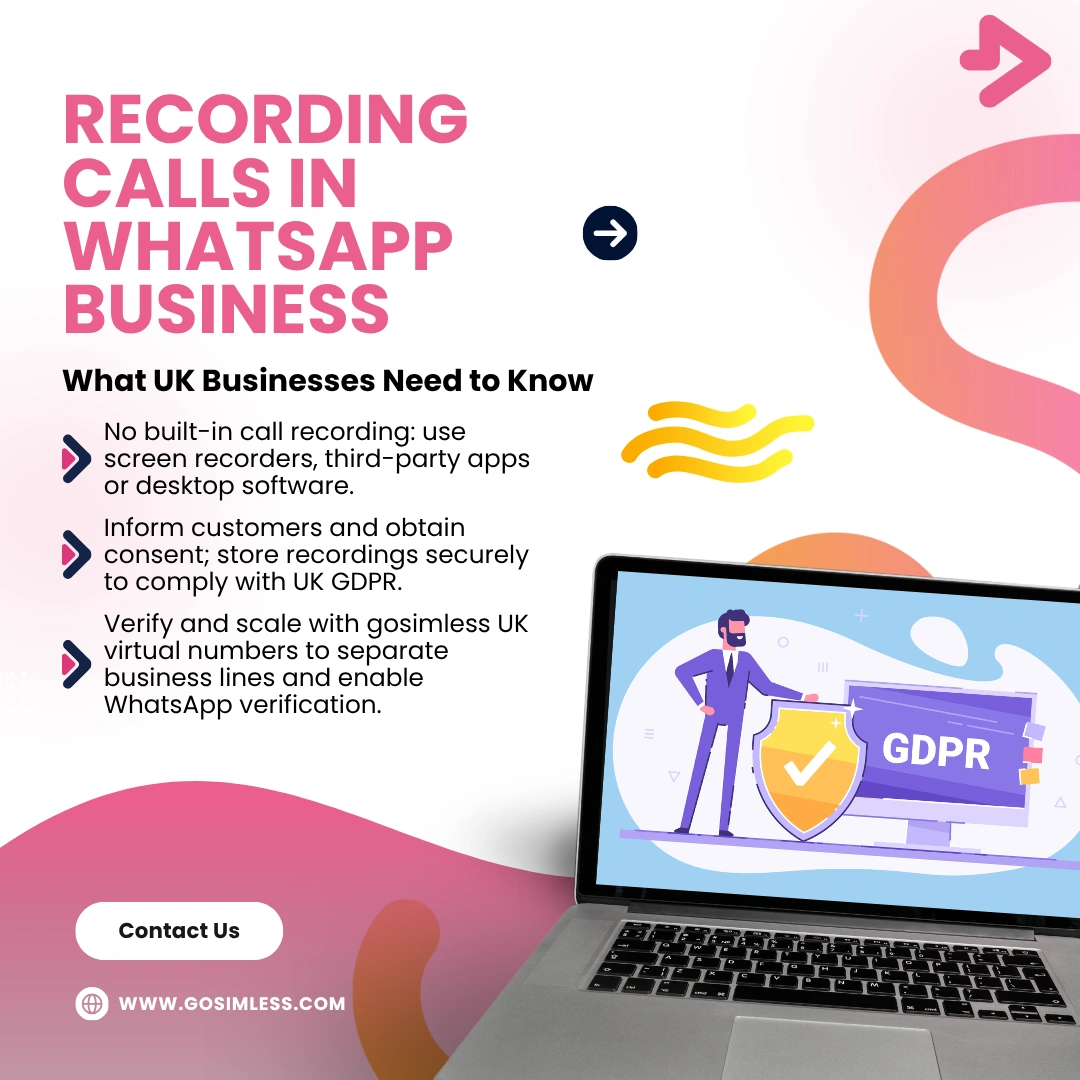
How to record WhatsApp Business calls on Android, iPhone, and desktop. Understand UK legal requirements, troubleshooting tips, and why gosimless virtual numbers help businesses verify WhatsApp quickly.
WhatsApp Business has become an essential tool for small and medium-sized enterprises across the UK. From handling customer enquiries to closing sales, many conversations now take place on WhatsApp rather than over email or traditional phone lines. With so much important information exchanged, one question keeps coming up: can you record calls in WhatsApp Business?
This guide explores everything you need to know about recording WhatsApp Business calls, including whether it's possible, what tools you need, the legal position in the UK, and step-by-step instructions for Android, iOS, and desktop users.
Can You Record Calls on WhatsApp Business?
The short answer is: WhatsApp does not include a built-in call recording feature. This applies to both the standard WhatsApp Messenger app and WhatsApp Business. The company cites privacy and security as reasons for not offering native recording.
That means if you want to record WhatsApp Business calls, you'll need to use external solutions such as screen recorders, third-party apps, or integrated call management systems.
Why Would a Business Want to Record WhatsApp Calls?
Recording calls in WhatsApp Business can serve a variety of purposes:
- Training staff: Recordings help managers evaluate how employees interact with customers and provide constructive feedback.
- Quality assurance: Businesses can check that all calls meet internal standards.
- Record keeping: Conversations can provide evidence in case of disputes or misunderstandings.
- Compliance: Some industries require that communications are logged and auditable.
However, before jumping in, businesses need to understand the legal and ethical considerations of recording calls.
Is It Legal to Record WhatsApp Business Calls in the UK?
In the UK, call recording is allowed under certain conditions, but businesses must comply with data protection laws, including the UK GDPR and the Data Protection Act 2018. The key rules are:
- Consent: At least one party (usually both for business purposes) should be aware the call is being recorded.
- Purpose limitation: You must only use the recordings for the purpose stated when collecting consent.
- Storage and security: Recordings are considered personal data and must be stored securely.
- Disclosure: Customers should be informed that their call may be recorded, ideally before or at the start of the conversation.
Put simply: if you're a UK business recording WhatsApp calls, always notify and obtain consent from the customer.
How to Record WhatsApp Business Calls on Android
Most Android phones support call or screen recording, but you may need to enable it. Here's how to do it:
Using the built-in screen recorder
- Open Settings and search for “Screen Recorder” (availability varies by manufacturer).
- Enable the recorder and adjust sound settings to capture device audio.
- Open WhatsApp Business and make or receive the call.
- Tap the screen record button from your quick settings panel.
- Once the call ends, stop the recording and save the file.
Using third-party apps
If your device doesn't support built-in recording:
- Download a trusted call recording app from the Google Play Store. Popular options include Cube ACR or AZ Screen Recorder.
- Grant microphone and storage permissions.
- Open WhatsApp Business and make the call.
- The app will automatically record or provide a floating button to start recording.
Note: Not all apps can capture WhatsApp audio because of Android's privacy restrictions. Always test before relying on recordings.
How to Record WhatsApp Business Calls on iPhone (iOS)
Apple's privacy policies make recording calls trickier on iPhones. iOS doesn't allow direct call recording through built-in apps. However, there are workarounds:
Using QuickTime on a Mac
- Connect your iPhone to a Mac with a Lightning cable.
- Open QuickTime Player on the Mac.
- Select File > New Audio Recording and choose your iPhone as the source.
- Start a WhatsApp Business call on your iPhone.
- Click the record button in QuickTime to capture the audio.
Using third-party services
Apps such as Rev Call Recorder or TapeACall allow iOS users to record by routing the call through their own system. This may require merging a three-way call, so the setup can be slightly more complex.
Using an external recorder
As a last resort, you can connect your iPhone to an external audio recorder using a 3.5mm adapter or Bluetooth microphone. This is often used by journalists but may be less practical for businesses.
How to Record WhatsApp Business Calls on Desktop or WhatsApp Web
If you use WhatsApp Business on your computer, the process is slightly different. You'll need screen recording software:
- Download a programme such as OBS Studio, Audacity (audio only), or Camtasia.
- Set the software to capture both system and microphone audio.
- Start your WhatsApp Business call through WhatsApp Web or the desktop app.
- Begin recording on the software.
- Stop recording when finished and save the file.
This method is particularly useful for teams who already manage calls from a desktop environment.
Best Practices for Recording WhatsApp Business Calls
Recording calls is only part of the process. To use recordings effectively:
- Always inform customers at the start of the call that recording is taking place.
- Store files securely using encrypted storage solutions.
- Organise recordings by date, customer, or project to make retrieval easy.
- Regularly delete old recordings if they're no longer required, in line with your retention policy.
- Train your team on compliance to avoid accidental breaches.
What to Do if Call Recording Doesn't Work
If you encounter issues recording WhatsApp Business calls, check the following:
- Permissions: Ensure the app has microphone and storage permissions enabled.
- Audio source settings: Some apps require you to specify whether to record from the mic, system, or both.
- Battery optimisation: Disable battery saver mode, which can shut down background apps.
- Update apps: Ensure both WhatsApp Business and your recording software are up to date.
If problems persist, consider switching to a different method or device.
Should You Use Virtual Numbers with WhatsApp Business?
While recording calls is important, getting your WhatsApp Business account verified in the first place is even more crucial. That's where gosimless comes in. With a UK virtual mobile number, you can:
- Verify your WhatsApp Business account even without a physical SIM.
- Separate personal and business communications.
- Scale easily by adding multiple numbers for different teams or departments.
- Manage everything digitally without relying on phone contracts.
This flexibility makes gosimless particularly useful for businesses that want to expand their WhatsApp presence while maintaining compliance and professionalism.
Frequently Asked Questions
Does WhatsApp Business allow automatic call recording?
No, WhatsApp Business does not offer native call recording. You must use external apps or software.
Can I record WhatsApp calls without informing the customer?
Legally, businesses in the UK should always inform and obtain consent from customers before recording.
Is recording WhatsApp Business calls safe?
It's safe if you use reputable software and store the recordings securely. Avoid shady third-party apps that may compromise your data.
Can I record group calls on WhatsApp Business?
Yes, group calls can be recorded using the same methods as one-to-one calls. However, you must inform all participants.
Do virtual numbers from gosimless support call recording?
Yes. gosimless provides UK virtual numbers for verification and use in WhatsApp Business. Once your account is verified, calls can be recorded using the methods described above.
Making WhatsApp Business Work Smarter for You
While WhatsApp Business does not include native call recording, there are reliable ways to capture conversations on Android, iOS, and desktop. Businesses must always consider legal requirements in the UK, particularly around consent and data storage.
By pairing WhatsApp Business with a UK virtual number from gosimless, you can set up and verify your account seamlessly, keep personal and business communications separate, and scale as your business grows.
If you're ready to take customer communication to the next level, explore gosimless today and discover how simple it is to get started.